 Number 267 - August 2005 |




|
| Windows XP Event Viewer | |
|
by Vinny La Bash, vlabash@home.com Sarasota Personal Computer Users Group, Inc. | |
|
Windows XP differs in many ways from its predecessors. The Event Viewer is one of those added elements which can greatly enhance diagnostics. Some folks may consider it to be a small step toward self-awareness. That's probably a stretch, but after taking a good look at what it does, you may begin to wonder. Event logs provide information about your hardware, software, system components, and monitor security events on a local or remote computer. Event logs can help you identify and diagnose the source of current system problems, or it can help you predict potential system problems. Any event that XP thinks you should know about will be recorded in a log file that can be accessed with the Event Viewer. The Event Viewer keeps three different kinds of log files: Application logs, Security logs, System logs. The application log contains events recorded by application programs. For example, a database program, word processor, image editor or spreadsheet may record a file error in the application log. Actions that are written to the application log are determined by the developers of the software program. The security log records valid and invalid logon attempts and actions related to resource use, such as the creating, opening or deleting of files. Web access, printer jobs, file transfer or anything which may require Administrator attention, will be recorded in the security log. The system log contains events logged by Windows XP system components. If your mouse stops working, and its driver is the reason, you'll find that information in the system log. The system log is a good place to look when one of your peripherals starts acting flaky. To open Event Viewer: Click Start. Click Control Panel. Click Performance and Maintenance. Click Administrative Tools. Click Computer Management. The Event Viewer dialog box is now open. Look in the left pane and you will see something that resembles the way folders are displayed in Windows Explorer. This formidable looking arrangement has an intimidating technical name. Programmers and developers call it a Hierarchical Tree Structure. It's a lot simpler than its name or appearance would lead you to believe. Information (folders and files) in a Hierarchical Tree Structure is displayed according to its 'rank' in the system. Let's use an ordinary deck of playing cards as an example. The highest ranking card is an Ace, followed by the King, followed by the Queen, Jack, Ten and so on, down to the Two or Deuce. In Windows Explorer, think of the Desktop as the Ace, since it stands by itself at the top of the hierarchy. Beneath it are the "Kings", My Computer, My Documents, Recycle Bin, and My Network Places. Open up any object on the "King" level and you get the rest of the files and folders related to that object in hierarchical order. Unlike a deck of cards, you are not limited to thirteen ranks. You can structure as many as you need or want. 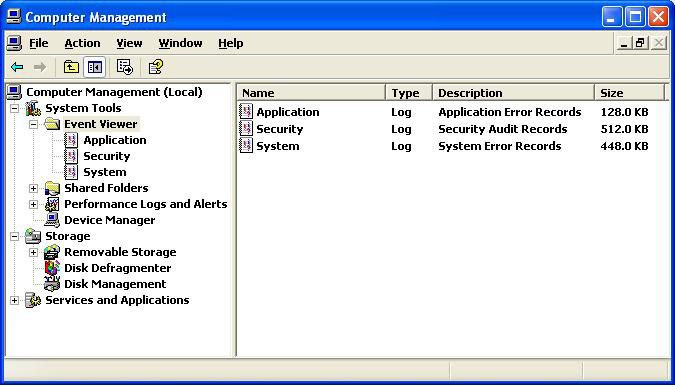
In the Event Viewer, Computer Management is at the top of the hierarchy, and the Event Viewer folder occupies the "Queen" rank. Underneath, the three log files are listed. In the right details pane you see a description of the files and their size. You will find three types of messages by opening the System or Application folder: Information: You can safely ignore information messages. Warning: Read these. You might be able to prevent a component failure. Error: Suggests corrective action. Sometimes it's useful. |
An information entry describes the successful operation of a task such as an application, driver, or service. For example, an Information event is logged when a network driver loads successfully. Unless curiosity is driving you, information events can generally be ignored. A warning entry is not necessarily significant, but it may indicate the possible occurrence of a future problem. For example, a Warning message is logged when disk space starts to run low. An error entry describes something that XP thinks is a significant problem, such as the failure of a critical task. Error events may involve loss of data, or function. For example, an Error event is logged if a service fails to load during startup. Security entries describe the successful completion of an audited security event such as logging on to the computer. An unsuccessful logon would generate a failure entry. You would get a similar error if a network drive were unavailable for whatever reason. The default view of event logs is to list all its entries, but that is seldom useful. Most of the time you're checking to see if something needs your attention, and to do that you need to filter the data. 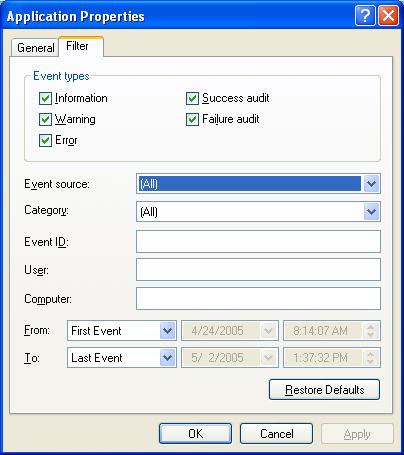
On the View menu, click Filter. Click the Filter tab, and remove the check marks from the Information and Success audit boxes. After applying the filter, you won't have to scroll through dozens of entries telling you that all is well. Warning messages are like a flag alerting you to a possible problem. Low disk space, slow downloads, and sluggish application loads are all indications that a cyber train wreck is approaching. Don't ignore warning messages. You do want to look at anything that is labeled as an Error. If you suddenly lose data for no apparent reason or if an application is failing, look here. Not every bad thing is caused by a virus or a worm. The Failure audit can usually tell you why a logon attempt failed, and if you're running a home network, this should be one of the first places you go to if you can't access a network drive. This is a seldom used tool because few know of its existence, and it's not easy figuring out how to use it. For a more complete overview visit http://www.microsoft.com and type Event Viewer in the search text box. : Copyright 2005. This article is from the June 2005 issue of the Sarasota PC Monitor, the official monthly publication of the Sarasota Personal Computer Users Group, Inc., P.O. Box 15889, Sarasota, FL 34277-1889. Permission to reprint is granted only to other non-profit computer user groups, provided proper credit is given to the author and our publication. |
|
Number 267 - August 2005
|
|