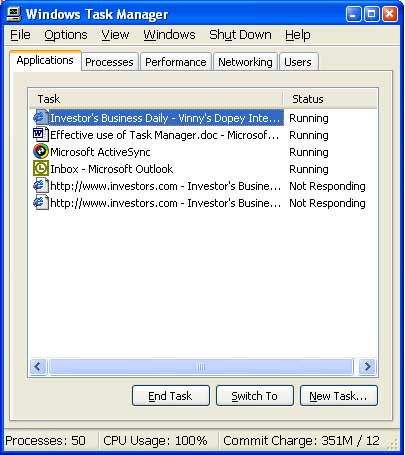
The Set Priority option will let a program have preference using CPU cycles. Windows will devote more time to running it, but that can slow everything else down. You can play around with this option to tweak your system, but it's probably easier and simpler to shut down what you're not using.
The best use of this tool lies in the columns of information it can display. To add or remove columns highlight Select Columns from the View menu. Choose the columns you want from the Select Columns dialog box. Let's examine some of them.
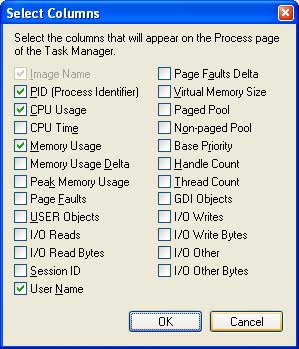
Page Faults shows the number of times a process reads and writes to a hard disk. The system starts counting page faults from the time the process is started. If this number is high, some other process or processes may be competing with it for available RAM. High means high relative to other processes. If Page Faults indicate your memory is under stress, you may need to install additional RAM. You can often reduce the number of Page Faults by closing any applications you don't need to have running.. Base Priority decides how much processor time the program will get. You can easily see if a priority is normal, high, low or something else. Use common sense if you want to experiment with priorities. Giving too many processes high priority can hang your system. Most of the other options are meant for programmers and developers. If you don't know what they are, don't mess with them.
The Performance tab shows how busy your PC is in typical geek fashion.. With all the talent in Microsoft, you would think they could do this in a less confusing way. The portion of the dialog box showing the CPU Usage and CPU Usage History is straightforward. The square shows the current load on the CPU, and the horizontal graph gives you its history over the last five or six minutes. You can open a program, run it for a few minutes, and then check back to see what kind of difference it makes to your performance.
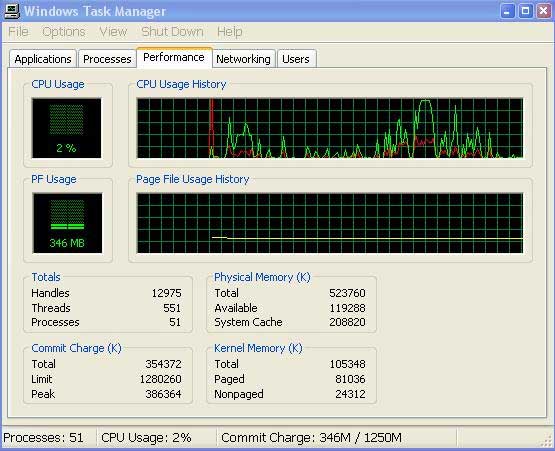
PF Usage: This section displays what your swap file is doing. If usage is high or maxed out, increase your virtual memory. You can't do it from the Task Manager. Go to Control Panel.
Totals: A handle is like a pointer that identifies a file or registry key so a program can have access to it. You can think of a thread as something in a process that tells a program what to do. A process is nothing more than an executable program like word.exe. Any object on your system that ends in .exe is a process. The only thing you can do to affect this is to change the number of processes running on your system.
Physical Memory: The Total is the actual amount of RAM installed. Available is how much RAM is still left for use. The System Cache is RAM that's holding information for programs to use without having to search the hard disk. You can make some adjustments to this value by going to the Advanced tab in the Systems Properties dialog box. Then click the Settings button in the Performance area.
Commit Charge: Talk about geek speak! This is the amount of available memory committed or charged to any programs you have running, including the Operating System. Because this section includes the virtual memory, totals may exceed the amount of physical RAM in your system. If you value your sanity, ignore this section. It's designed for bit-twiddlers.
Kernel Memory: This is the portion of your RAM that's reserved for your operating system and device drivers. Don't even think about messing with it.
Networking: If you have a home network, this section will show you how much information you're sending around your computers. You can see if your network is really working or how busy it gets when a web connection is made. It will show how much you stress your system when you download a file, and how much of your system resources you need to play those cool online multiplayer games.
Users: This is where you are supposed to find out what programs the kids are running, but that's a non-starter. You really need to go to the Processes tab and check the box marked "Show processes from all users".
This article is not an exhaustive review of every possible approach you can use to employ the Task Manager. It's simply an attempt to demonstrate some useful ways to monitor and adjust common Windows applications. Take whatever time necessary to understand how to interpret and use the information Task Manager displays, and you can easily modify portions of your system to work more efficiently.
Copyright 2005. This article is from the May 2005 issue of the Sarasota PC Monitor, the official monthly publication of the Sarasota Personal Computer Users Group, Inc., P.O. Box 15889, Sarasota, FL 34277-1889. Permission to reprint is granted only to other non-profit computer user groups, provided proper credit is given to the author and our publication.