 Number 317 - October 2009 |





|
| A Slightly Different Kind Of Shortcut | |
|
by Vinny La Bash, Sarasota Personal Computer Users Group, Inc. | |
|
Whenever you select a menu item or activate an icon on your desktop, you are most likely opening a file called a shortcut. This is a great time saver for the average person who uses computers on a regular basis. A computer shortcut is a file similar to any other file that resides on your computer, with one big difference. It's only function is to direct the operating system to the location of another file so you don't have to go exploring through layers of folders to find it, assuming you even know its location. As mentioned above, it's a great time saver. Wouldn't it be handy to have a desktop shortcut icon that would bring you to your favorite web site without having to go through all the intermediate steps to get there? First you need to open your browser. Then it's a matter of getting the URL into the address bar. There is more than one way to do this. You can use the mouse to select an item from the Favorites bar or Command bar. You can also type in the address manually, which is prone to error and can be cumbersome if the URL is long and complex. Suffice to say that Microsoft has provided the ability to create many paths to the same destination. No matter which path you take, the first time you visit a web site is the most time consuming. Only once do you need to take the longest journey. Subsequent visits can be made via a desktop shortcut. Let's take the path of least resistance. 
The illustration shows the web address (URL) of a web site we'll presume you visit frequently. The easiest way to create a desktop shortcut to this location is to: |
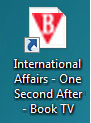
Your desktop icon will resemble the illustration above. Customizing the icon is easy. Right-click on the icon, and select Properties from the popup menu. Activate the Web Document tab. From here you can change the icon by clicking on the Change Icon button and choosing from a large selection provided by Microsoft. If you don't care for any of these, you can browse through folders on your computer until you find one you prefer. The Security tab allows you to grant or deny access to anyone who also shares your computer. Information on the Details tab will vary with the web site. The General tab, (which should be the Details tab), is where you get the detailed information about the icon. Change whatever you think needs changing or leave everything alone. The choice is yours. As always, the devil is in the details. If the website you wish to access through the shortcut requires authorization, the shortcut may not work. If a user ID and password are needed you will most likely get a message telling you that you're not getting in until you provide proper identification. Copyright 2009. This article is from the September 2009 issue of the Sarasota PC Monitor, the official monthly publication of the Sarasota Personal Computer Users Group, Inc., P.O. Box 15889, Sarasota, FL 34277-1889. Permission to reprint is granted only to other non-profit computer user groups, provided proper credit is given to the author and our publication. |
|
Number 317 - October 2009
|
|