 Number 316 - September 2009 |





|
| Windows Task Scheduler | |
|
by Vinny La Bash, Sarasota Personal Computer Users Group, Inc. | |
|
Windows draws its share of critics, but one thing the wizards of Redmond did right was to redesign the XP Task Scheduler for Vista. There were no radical revisions, simply a combination of small changes that made a big difference. The tool is easy to access, easy to use, easy to modify if necessary, and easy to tell it to go away when you don't need it anymore. Why would you want to use it? If your computer activity includes doing anything on a regular basis, whether it is daily, weekly, monthly or some other time variant, Task Scheduler could be useful. For example, I need to remember to take medication usually at a time when I'm busy doing something else. Task Scheduler throws a message in my face reminding me to pop my pill at the appropriate time. If I'm not at home, my smart phone relays the message. But at home or elsewhere, it's Vista Task Scheduler that gets the message to me. Of course, when I leave the house I have to remember to bring my medicine with me, but that's a tale for another article. I'm seriously thinking of creating a computer game for senior citizens called "The Hereafter". It starts out with the player walking into a room and wondering "What am I here after?" Task Scheduler will play a big part in this. Let's say you use the calculator a lot and you would like it to start up whenever you turn on your computer. Here's how to set it up: You will now see a dialog box with a very intimidating appearance. It doesn't bite and won't tell anyone if you stayed up past your bed time. Let's examine it briefly to understand what's going on in the dialog box before we proceed. In the left pane, the top item which is marked (local) tells us that what we see in the middle pane are Task Scheduler items assigned to the machine you are currently using. If your machine is not part of a network it has no other significance. The middle pane is divided into three parts: Overview of Task Scheduler: Overview is a brief description of what you can do with the tool and where the tasks are stored. The folder labeled Task Scheduler Library can be expanded to display the Console Tree. Ignore this for now. 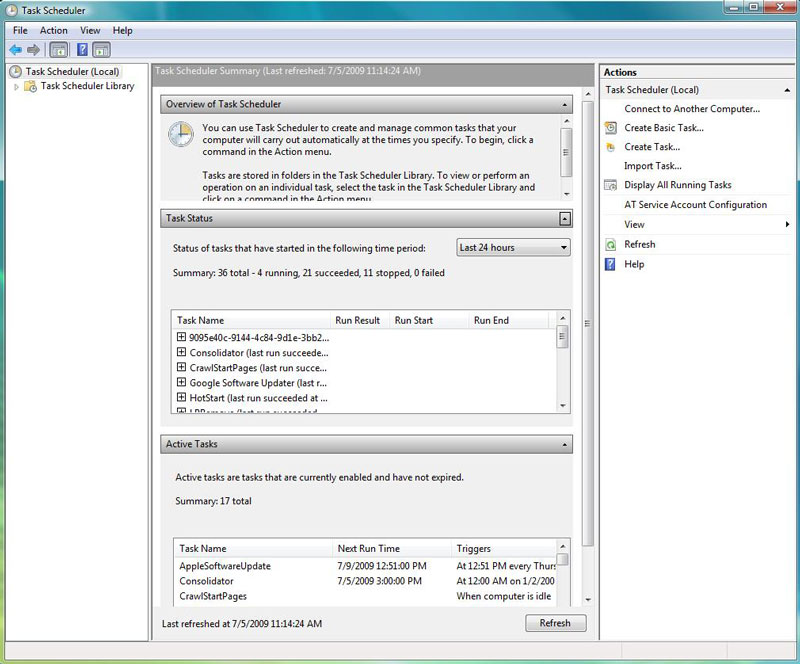
|
Task Status: This section covers four time periods. Tasks that have run in the last hour, 24 hours, 7 days or 30 days. It tells you how many tasks have started during the period, how many are currently running, how many are complete, how many are stopped for one reason or another, and how many have failed. Obviously, this section is used for troubleshooting. Active Tasks: This section tells you what Task Scheduler is doing right now. Let's leave it at that. The right pane is the section we came to play in. For our purposes there is no important difference between Create Basic Task and Create Task. There are two important concepts at work when you run tasks using the Task Scheduler. The first is the trigger, the event that causes a task to run. The second is the action, the work that is carried out when the task is triggered. There are three main actions associated with running a task: sending an e-mail, running a program, and displaying a message. Many actions can trigger a task. Among the most common actions are starting the computer, the computer entering an idle state, the occurrence of a specific time and date or the computer performing some specific function. Think about how you use your computer and you can probably find a productive use for the Task Scheduler. Copyright 2009. This article is from the August 2009 issue of the Sarasota PC Monitor, the official monthly publication of the Sarasota Personal Computer Users Group, Inc., P.O. Box 15889, Sarasota, FL 34277-1889. Permission to reprint is granted only to other non-profit computer user groups, provided proper credit is given to the author and our publication. |
|
Number 316 - September 2009
|
|