 Number 309 - February 2009 |





|
| Diagnosing RAM Errors in Vista | |
|
by Vinny La Bash, Sarasota Personal Computer Users Group, Inc. | |
|
There is nothing useful that can happen in your PC without RAM. That's why it's essential to have high quality, reliable memory chips installed on your equipment. Defective RAM shows up as application errors, messages that your operating system is not quite right, and stop errors which bring your system down hard and unexpectedly. Testing you machine's RAM with Vista's Windows Memory Diagnostic will either find your problem or assure you that your RAM is in tip-top condition. With your system up and running, close all applications before launching the diagnostic tool to prevent data loss. Click on the Start orb, select Control Panel, and click the System and Maintenance icon. Select Administrative Tools, and from the right pane click on the Memory Diagnostics Tool icon. An alternate way of starting the tool is to click on the Start orb, type Memory in the Start Search text box, and then click the Memory Diagnostics Tool icon. 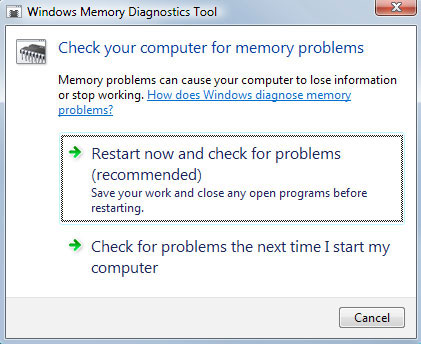
When the dialog box appears left click on the portion that starts with Restart now. The dialog box will close and your computer will restart. Eventually the Windows Memory Diagnostic Tool's dialog box will appear and the test will begin automatically. Watch the white progress bar as the test advances through its various stages. You will be able to track progress as the tool repeatedly writes information to memory and then reads the data to verify that nothing changes from the write to the read. |
The default is a standard memory test, but there are two other types of memory tests available to you depending on how much time you want to devote to testing, and how thorough you wish to be. Pressing the F1 key will bring up the Options screen. Locate the Test Mix section and choose either the Basic or Extended mix. The Basic mix runs a decent basic test, but is superficial in comparison to the Extended mix. Up to eight hours can be required for the Extended mix, so don't run it unless you have exhausted all other options. Each test mix was designed with certain default cache settings which are optimized for that particular test mix. You can change the defaults and create a custom mix of your own, but unless you have an advanced level understanding of how memory works and is tested, you are probably better off leaving the default settings alone. Some analyses use the cache on the microprocessor to see if the microprocessor is retrieving data properly from the memory modules. Other tests disable this cache to force the microprocessor to access all its data directly from the memory modules. The tests are run twice, but by pressing the Tab key you can access the Pass Count section and specify how many times you want to repeat the tests. Make your changes and save them by pressing F10. Messages will appear on the Status area if problems are found. If you wish to do other things while the tests are running, you can because if problems are found the Windows Memory Diagnostic Tool will reroute data around the trouble areas and allow Vista to restart without crashing. When you return, look in the notification area to access the test results. The System Event Log also stores the test results. Look under MemoryDiagnosticResults. What if Vista won't boot? Start the system and continually press the F8 key until the Windows Boot Manager appears. The Windows Memory Diagnostic option is at the bottom of the screen and you can select it with the arrow keys. If it's impossible to get to the Boot Manager, run the tool from the Vista installation disk. Follow instructions until the Install Now prompt appears. Look for and select the Repair Your Computer option. You will find the Windows Memory Diagnostic Tool on the System Recovery Options menu. The Windows Memory Diagnostic Tool is an excellent utility, but it sometimes delivers a false positive. In addition, many knowledgeable people believe that hardware based testers are superior. Regardless, the utility is an excellent diagnostic instrument provided it is used with those limitations in mind. Copyright 2009. This article is from the January 2009 issue of the Sarasota PC Monitor, the official monthly publication of the Sarasota Personal Computer Users Group, Inc., P.O. Box 15889, Sarasota, FL 34277-1889. |
|
Number 309 - February 2009
|
|