 Number 302 - July 2008 |





|
| Making Your Old Color Slides and Negatives Computer Readable | |
|
by Carl Tenning and Bob Thomson, Tacoma Open Group for Microcomputers | |
|
The title above was the theme of two presentations given at the June, 2008 meeting of the Tacoma Open Group. Carl Tenning started off by describing a program that he had purchased a few years ago. Bob Thomson followed with a presentation of software purchased in the last three months and which used a different approach to scanning the images. Here the two authors give a brief description of their software and how they performed. Using the PrimeFilm 1800u Scanner from PacificImage Electronics By Carl Tenning, Tacoma Open Group for Microcomputers The PrimeFilm 1800u is a 35 mm transparency scanner that will scan either positive slide film or color negative film. Scanning is done a single frame at a time with a scan head similar to a flatbed copier/scanner. The difference is that to scan a transparency, the transparency must be backlit. During the scan, a light source passes beneath the film as the scan sensor passes above the film. Once the scanner is set up, it takes approximately 60 seconds per slide to (1) load the slide, (2) scan, (3) remove the slide, and (4) save the image to a hard drive. This is assuming that the film exposure was normal, neither under exposed, over exposed, or faded. For film that was badly exposed or faded, adjustments can be made, at the expense of additional time. For properly exposed film, there is a one-touch scan button on the front of the scanner which can be used to trigger the scan. 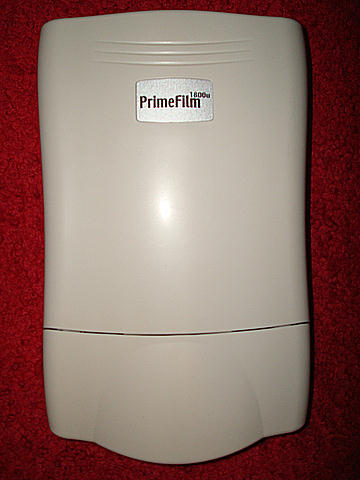
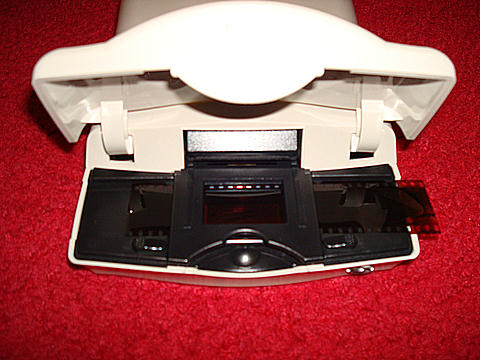
This scanner was originally purchased a few years ago for $149.95 and is recently selling on the internet for $129.95. The scanner came with a driver on CD good for up to Windows XP. However, I found from the PacificImage website, http://www.scanace.com/en/index.php, that a Windows Vista driver is now also available. The scanner comes with an external power supply and connects to the computer via a USB cable. The driver is CyberView, Pacific Images TWAIN compliant scanning interface software for the scanner. CyberView gives the user complete control over the resolution, color, and all other aspects of the scans. The club demonstration was done using an HP laptop computer running Windows Vista. A strip of 35 mm film or a 35 mm mounted slide transparency is inserted into the scanner as shown. After setting up the scan resolution, the scan can be activated from the one-touch button on the front of the scanner. |
Opening the scanner driver from the desktop, brings up the scanner preview screen. From here the slide can be previewed and scan settings adjusted. The maximum optical scan resolution of this scanner is 1800 DPI (dots per inch). My preference for scanning 35 mm slide film is 900 DPI, which produces a graphic image of 1240 x 844 pixels giving a convenient size for viewing on a computer monitor. The resulting JPG file size varies between approximately 300 KB to 800 KB depending on the detail and color variation of the image. There are various color, contrast, and brightness adjustments that can be made prior to the scan. There is also an exposure setting that can be adjusted. Scanning at 1800 DPI produces an image size of 2482 x 1690 pixels. 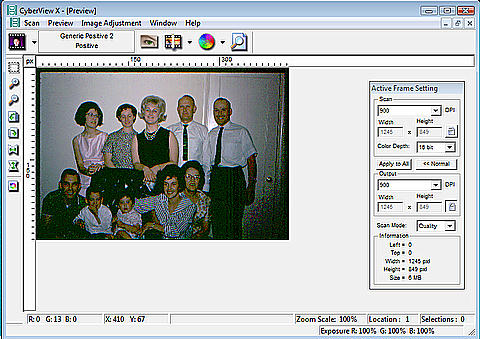 Images can also be saved in TIFF format. A 900 DPI scan produces a TIF file size of 6,269,564 bytes, while scanning at 1800 DPI yields a file size of 25,167,684 bytes. Scans can also be initiated from other image editing software such as CompuPic. Selecting Scan from within CompuPic is done by selecting Tools > Capture / Scan Pictures. Initiating a scan by this method then opens the CyberView scan window. |
|
Number 302 - July 2008
|
|