 Number 285 - February 2007 |





|
| Boot Partitions are Sooo Pass‚! | |
| By Dan Delong, Durham PC User's Club December 2006 | |
|
This title came from my son, who has recently installed the, now free, Microsoft Virtual PC 2004. He did so in order to run Linux, easily and safely, in a virtual machine, and while running his native XP Pro at the same time. He followed with an installation of Linux Apache (a web server). Since his mainboard has two Ethernet ports, Apache could connect with its own network interface card/adapter (NIC). Also, there was no need to set aside a boot partition for Linux, or any other operating system, for that matter. Essentially, Virtual PC gives the other operating systems a link to the hardware and bios settings of your physical machine, in a virtual environment: i.e.; a virtual machine. He could have installed several more operating systems, along with XP Pro and Linux, and just as easily switch amongst them. Here's what Andrew wrote: ...Then I downloaded the ISO (cd-as-a-file) for the Ubuntu Linux distribution, which has been getting good reviews for ease-of-use. Virtual PC then lets you create a new "virtual hard disk" which acts like a partition but is actually a file you can see in Windows. The new virtual machine then boots from this hard drive (with your real bios, I think!) and you can hit DEL to change the virtual BIOS's settings inside the window, just like you would on a real boot-up. Then, instead of burning the ISO to a CD, it lets you "load an ISO into its virtual CD-drive" which means the new virtual machine will boot from the CD and it then installs Linux as if it were a fresh machine. Attached is a screenshot of it running on my system (Figure 1). Luckily my machine has two network adapters (2 Ethernet ports) so my virtual-Linux can access my network directly and gets assigned its own IP address. I can now run myapache server from Linux (secure and no licensing problems) and transfer data between Linux and Windows. I've been playing with Ubuntu and it looks like they're finally getting Linux right. Here's what Microsoft says: "Use Microsoft Virtual PC 2004 to run multiple operating systems at the same time on the same physical computer. Switch between virtual machines with the click of a button. Use virtual machines to run legacy applications, provide support, train users, and enhance quality assurance." Users may switch between operating systems as easily as switching between applications. Clicking in the Start menu brings up a set of windows showing all virtual machines. Virtual PC can pause individual virtual machines so they stop using CPU cycles on the physical computer. It can also save virtual machines to disk and restore them at a later time. The restoration process normally takes a few seconds-much faster than restarting the guest operating system. Some Neat Features: |
Virtual PC 2004 will install most on most 32-bit x86 and 64 bit operating systems. (Then install any OS, from DOS 6.22 to Windows 1.0 to XP Pro, and Linux and Netware on the virtual machines.) But, you'll need to be installing Virtual PC inside Windows 2000 Professional SP4, Windows XP Professional or later, and Windows XP Tablet PC Edition or later. Get Microsoft Virtual PC 2004 for free here: www.microsoft.com/windows/virtualpc/ You'll also find a great demo. Microsoft will also offer a free download of Virtual PC 2007 Beta, with support for Windows Vista; available in 2007 (requires registration). Remember to use Internet Explorer to view this demo and to download the software (18.2 MB). You can assign each operating system to a different network adapter (up to four NICs), so that each virtual machine appears as a separate workstation (as mentioned - greatfor running a web server). Or, select not to use the network adapter(s), but only send traffic to other virtual machines on this computer. Or, select Shared networking (NAT), which allows guest operating systems to obtain an IP address dynamically. As for using up hard disk space, there are a number of options here as well: Dynamically Expanding as needed, Fixed Size (like the partitioning method), Differencing, (with the hard disk based on an existing virtual hard disk and where the parent disk untouched), and Linked to a hard disk on the computer. It even claims to be portable on external hard drives, at least as far as the configuration file for the virtual machine goes. 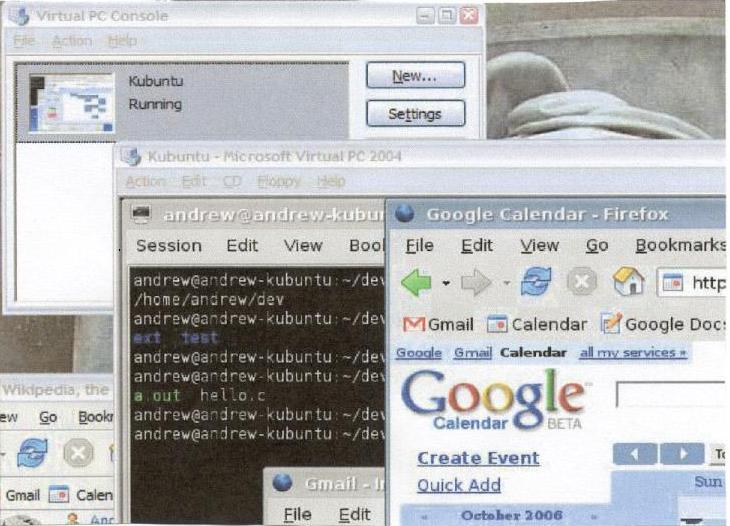
Figure 1 Firefox running in Linux, which is running in Microsoft Virtual PC 2004 |
|
Number 285 - February 2007
|
|