 Number 260 - January 2005 |





|
| Smart Tags: What They Are, How to Use Them | |
| by Linda Gonse, Editor, Orange County IBM PC UG, CA | |
|
To some, Smart Tags may be a valuable tool. To others, they are a pain in the index finger. (Smart Tags are new in Office XP.- TOGGLE ed)
If you've never seen Smart Tags before, you may not know what they are, or how they work. Smart Tags seemingly pop up when you least expect them in a Word 2003 (XP) document. Briefly, Smart Tags are prompted by seven types of information, called "recognizers": People's names, dates, times, addresses, places, phone numbers, and recent email recipients in Outlook. Word uses the recognizers to bring you additional choices related to them. 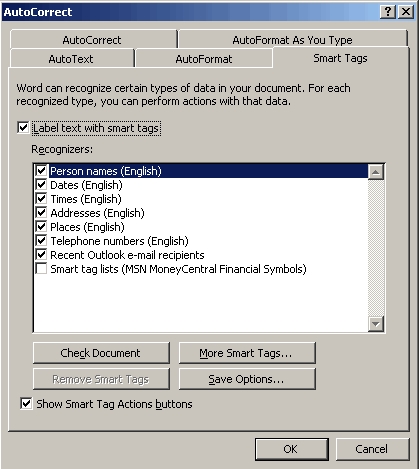
Smart Tags and the options for using them are located on your tool bar, under Tools. Click on AutoCorrect, and the Smart Tags tab to access them. You can check or uncheck certain "recognizers," such as people's names, to customise the tags for your style of use and needs. Depending on which recognizer you type, two things happen. First, a small, yellow text box--similar to a tool tip when your cursor hovers over toolbar buttons--appears over a partially-typed recognizer and offers to auto-complete it. You can accept the offer by pressing Enter, or if you continue to type, the text box will disappear. 
Secondly, after you have typed a recognizer, a small box with a down arrow will appear above the entry. Clicking on the down arrow triggers a submenu to open, offering you specific options for the information. The tags were designed to help you do your work faster by bringing relevant choices to you, instead of you taking time to locate them. This is where the conflict arises between the helped and the helper. Similar to ClipIt and the other Office Assistants, Smart Tags can be distracting and interrupt your work flow. And, they can obscure other text you may want to see. Take it from me, a couple of helpful Smart Tags in one paragraph can incite you to "page rage" pretty fast! But, suppose you need all the help you can get and let's say you've just typed a person's name in your document. If the box was checked on the Smart Tags tab, the name would be recognized by Word and a Smart Tag would appear next to it.You can take your pick from a list of whether to Send Mail, Schedule a Meeting, Open or Add to Outlook Contacts, and Insert Address. |
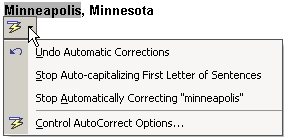
Smart Tag help is probably like a glass of frosty tea on a hot day to people who have trouble spelling. Just spell the first four letters of a month, for instance, and a Smart Tag will be there like a flash spelling the entire word for you. How many times have you been startled in the middle of typing a word by seeing the previous word suddenly capitalized? Suppose you didn't want it AutoCorrected? Smart Tags will give you a chance to quickly change it back to lower case with a tag that has a picture of a lightning bolt on it. On the other hand, you may decide to go to Tools, AutoCorrect, and take that check mark off of Capitalize the First Letter of a Sentence, and be done with this situation henceforth and forever. Smart Tags also include a box with a picture of a clipboard that appears under text that you have pasted. This gives you choices on your pasted selection. This may not be a bad idea. Even nicer, is that the Paste Options box doesn't cover your pasted text, unlike other Smart Tags. 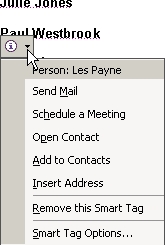
If you want to have the Smart Tags, but not the yellow text labels, go to the Smart Tags tab and deselect "Label text with Smart Tags." You'll still have the popup Smart Tags with context menus. But, you can limit these to appear without some of the recognizers by unchecking the boxes next to them. Or, you can turn them off completely by deselecting the box at the bottom of the tab, "Show Smart Tag Actions Buttons." 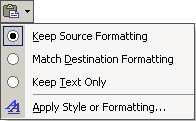
Interestingly, the Smart Tags themselves have a button at the bottom of their context menus called "Smart Tag Options." Click on this menu item and a Smart Tag tab allows you to make similar tweaks, including turning Smart Tags off. 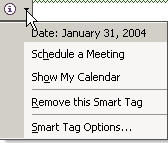
The Editorial Committee of the Association of Personal Computer User Groups (APCUG), an international organization of which this group is a member, brings this article to you. |
|
Number 260 - January 2005
|
|