 Number 234 - October 2002 |





|
| Drag and Drop with the Right Mouse Button | |
| by Vinny La Bash, Sarasota PC UG, Nov 2001 | |
|
Once you learn how to
'Drag & Drop' objects, it doesn't take long to discover that `Drag
& Drop' performs different functions depending on what kind of
object you're dragging and dropping.
If you drag a program, Windows creates a shortcut to it. That's because physically moving a program can be a really bad idea. Since all kinds of processes depend on the location of a program, don't jerk your system around by moving applications unless you have a good reason. If you drag a file, Windows assumes you want to move it. Moving a file won't cause any system problems, so Windows has no objections. However, if you do start moving files around, note where you are moving the file from and what folder you are moving it to. It may help the next time you try to access the file and it's not where you expect it to be. (It's always a good idea to know how to use the Find tool.) Finally, if you drag an object from one drive to another, Windows logically assumes you want to copy it. How can you tell which operation Windows is performing when you 'Drag & Drop'? You need to pay attention to the "shadow icon" that Windows displays while you hold your left mouse button down and drag. Look at the bottom right portion of the "shadow icon": |
1. If you see a + sign, you are performing a copy operation.
2. If you see a curved arrow, you will create a shortcut. 3. If there is only the "shadow icon" visible, you are moving the object. If all this comes as a surprise to you, take comfort in the fact that you are not alone. If you want to specify the kind of drag-and-drop operation, try dragging and dropping while holding down the right mouse button instead of the left. When you release the mouse button, a pop-up menu will appear. You're then given the choices of Move Here, Copy Here, or Create Shortcut(s) Here. Select one of the three, or choose Cancel to abort the operation. 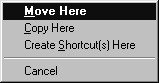
Undoubtedly, it's faster to 'Drag & Drop" using the left mouse button. Using the right mouse button ensures that you are making the right choice. The pop-up menu even provides a convenient escape hatch with the 'Cancel' option. It's up to you to choose speed or accuracy. Copyright Sarasota PC Monitor, Sarasota Personal Computer Users Group, Inc. http://spcug.org |
|
Number 234 - October 2002
|
|