 Number 207 - August 2000 |
| Get Connected: A Port Primer | ||
| by Bob Ryan (bryan@accessmagazine.com) | ||
|
When shopping for a
scanner, printer or other peripheral, one of the biggest decisions you
have to make is how to connect it to your computer. Should you buy a
scanner that attaches via a SCSI port, parallel port or USB port? Most
peripherals only let you connect to one kind of port, and not all
computers come with every option. Here's a look at the major ports and
connectors you'll find on your computers and what they're good for.
|
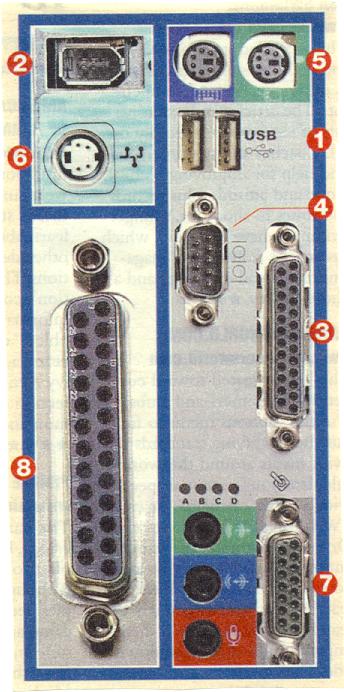
(1) USB: The
universal serial bus is the easiest way to attach printers, scanners,
digital cameras, input devices and most other peripherals. The
exceptions are high-speed devices such as hard disks and digital
camcorders. The practical limit is three USB devices per port--the
supposed maximum is 127 connected to each other in a series (called a
daisy chain). USB is on all new Macs. Windows users take note: It only
works properly with Windows 98.
(2) FireWire: Also called IEEE 1394 or i.Link, FireWire is designed to connect high-speed devices such as hard disks and camcorders. FireWire peripherals are as easy to configure as USB. Until FireWire ports become standard (you'll find them on newer Macs), you'll need to open your computer to add a FireWire card (see box) or add it via a PC Card for laptops. (3) Parallel: Primarily used as the printer connection on Windows systems, it's also used to connect scanners, Zip drives and CD-Rewriteable drives. Though it's usually easy to daisy chain two parallel devices, you're asking for trouble adding a third. (4) Serial: Used mainly to connect external modems and some digital cameras, serial ports can be hard to configure so the peripherals work properly. Go with USB if you can. (5) PS/2 and (6) ADB: Most Windows systems use PS/2 ports to connect your keyboard and mouse. Macs once used the ADB (Apple Desktop Bus) port, but,current Macs have discarded it for USB. Windows computers are joining suit. (7) Game port: Game controllers on Windows systems are difficult to configure, so if you have the option of buying a joystick that uses USB vs. the game port (which is usually on your sound card), go for the USB. (8) SCSI: Standard on Macs for many years, small computer system interface (SCSI, pronounced "skuzzy") has never been popular because it's hard to install and configure. The advantage is speed--scanners communicate with a computer faster through SCSI than through a parallel port. SCSI is also being replaced by USB. Though external ports provide a relatively easy way to add hardware, some devices such as hard disks, CD-Rewriteable drives and DVD-ROM drives are still best added internally using the interior connector cable that hooks to the motherboard. Other hardware, such as memory and graphics cards must be added internally. Bob Ryan has been writing about computers for 17 years. 
Speaking of game ports |
|
|
Number 207 - August 2000
|


|
|